
★Getting started
- Start Oufle. The home window shows whether Genshin Impact is running.
- Start the game (or switch back to it). Oufle follows it: nothing to set up.
- Look at the bottom centre of the game. On screens where a feature helps, a button with the Oufle badge appears there. Buttons with the badge are ours; everything else is the game.
- Click an Oufle button to open its panel. Panels open just above the buttons and never cover the game's own buttons such as Wish ×1 or Salvage.
⌂The home window
Home, Account, Guide and Feedback share one resizable launcher. Game tools stay in the game.
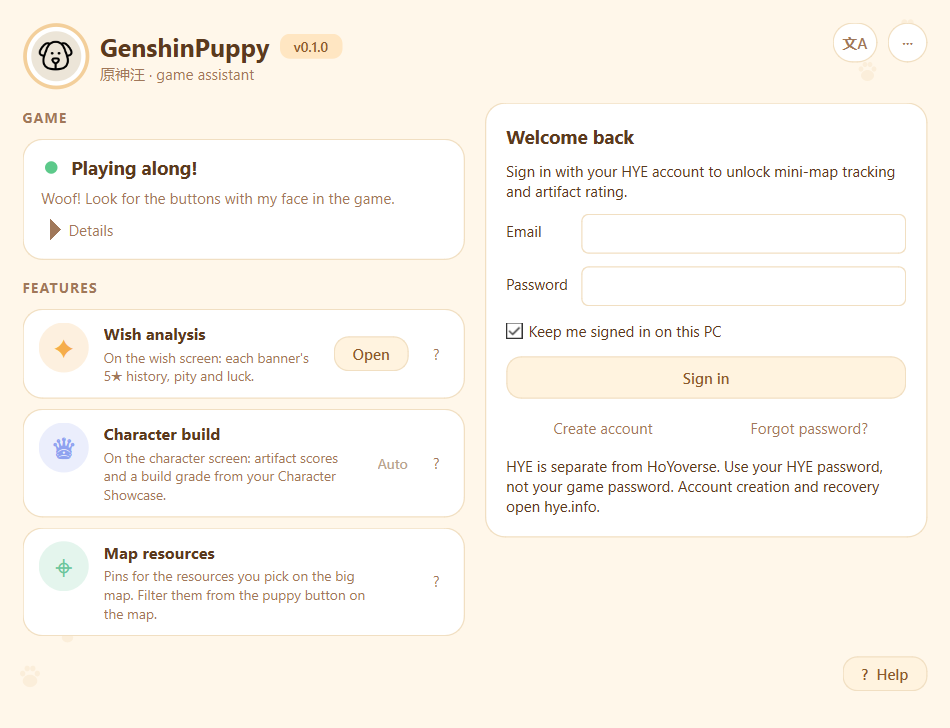
Game status
| Light | Meaning |
|---|---|
| Grey | Genshin isn't running. |
| Yellow | Genshin is running but in the background or minimised; in-game buttons are hidden. |
| Green | Genshin is in front: Oufle is ready. |
The status card shows the current screen, game resolution and display scale, game version and your UID once a feature has read it.
Features
Available features run automatically. Artifact rating and Mini-map tracking unlock after Oufle sign-in. Feature cards open their instructions. Wish analysis and character build open from Oufle's in-game dock.
Click Guide to read this guide inside the launcher. Feedback keeps a draft as you switch pages and queues submissions for delivery when online.
Oufle account
Open Account, enter your Oufle email and password and click Sign in. Mini-map tracking (including trail recording) and Artifact rating unlock after sign-in. Big-map resources, wish analysis, character build and help work without an account. Create an account or recover your password on oufle.com using the links in the sign-in form. Oufle, HYE and HoYoverse accounts are separate.
Keep me signed in on this PC remembers your session using Windows-protected storage; your password is never saved. Sessions are checked when the app starts and every five minutes. Sign-out, expiry, revocation or a failed connection check locks these features. Mini-map tracking starts automatically after sign-in; no feature switches are needed.
Language
The 文A button at the top: follow the system, English or 中文. Panels in the game switch too.
The ⋯ menu
- Show pins the game already shows: waypoints, statues and domains are hidden from the map filter unless you turn this on.
- Open shared pictures folder: where your share images are saved.
- Debug window and Run a diagnostic pass: for reporting problems with map pins.
✦Wish analysis
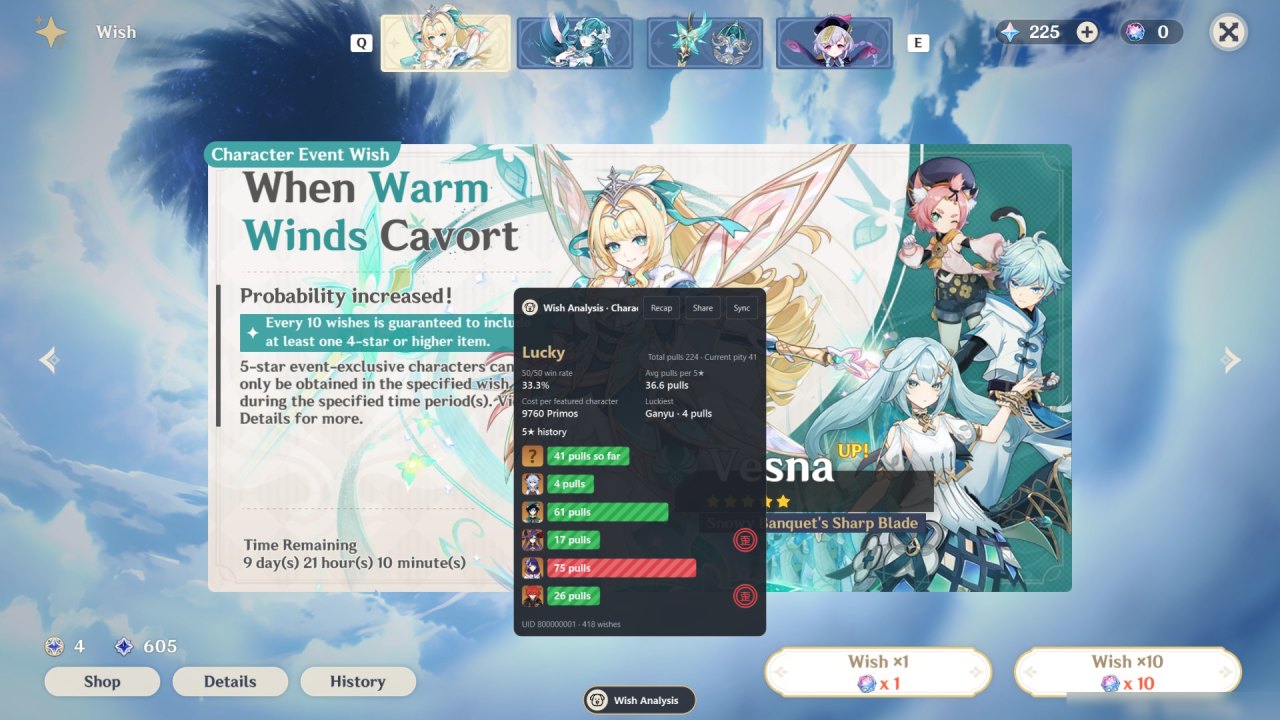
Every banner's 5★ history, pity and luck, right on the wish screen.
First time
- In the game, open Wish → History once. The game keeps a short-lived link to your history; Oufle uses it.
- Open the panel and press Sync. The first sync reads the last year of wishes, about a minute.
After that the panel syncs quietly on its own when you visit the wish screens (at most every ten minutes) and whenever you reopen it. The game itself lists a wish about an hour after you make it, so a brand-new 5★ shows up on a later visit.
Three histories
The panel follows the banner on screen. The two character event banners share one history (and one pity), so there are three: Character Event, Weapon Event and Standard. Chronicled wishes are shown when you have them.
What you see
- Luck title from Blessed to Cursed, and how many players you're luckier than.
- Average pulls per 5★, 50/50 win rate, and cost per featured character or weapon.
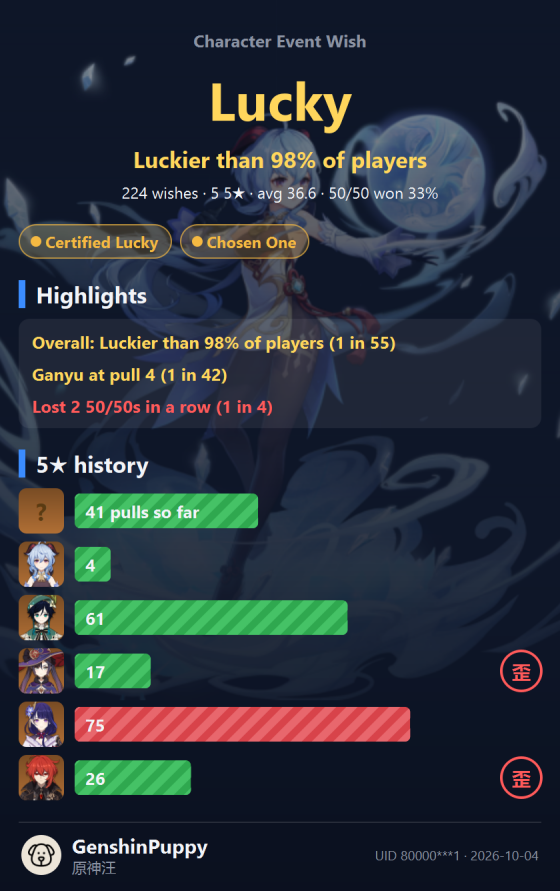
- Every 5★ with its pity as a bar: short and green is lucky, long and red is hard pity. A small mark shows a lost 50/50.
- Your current pity on each banner.
Luck uses the game's real odds: 0.6% base rate, soft pity from pull 74 and a guaranteed 5★ by pull 90 (weapons: 0.7%, from 63, by 80).
A long history goes into two columns, so you rarely need to scroll.
Year in Wishes and sharing
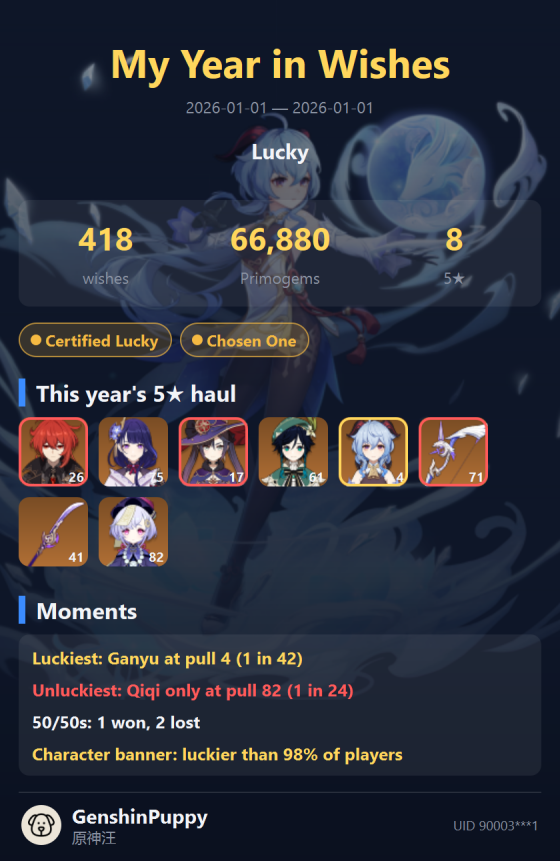
The panel's fourth tab, My Year In Wishes, shows characters and weapons from every banner of the last year on one card, right in the game. Share saves whatever tab you're on as a picture and copies it.
♛Character build
Artifact scores, crit value and a build grade for the character on screen.
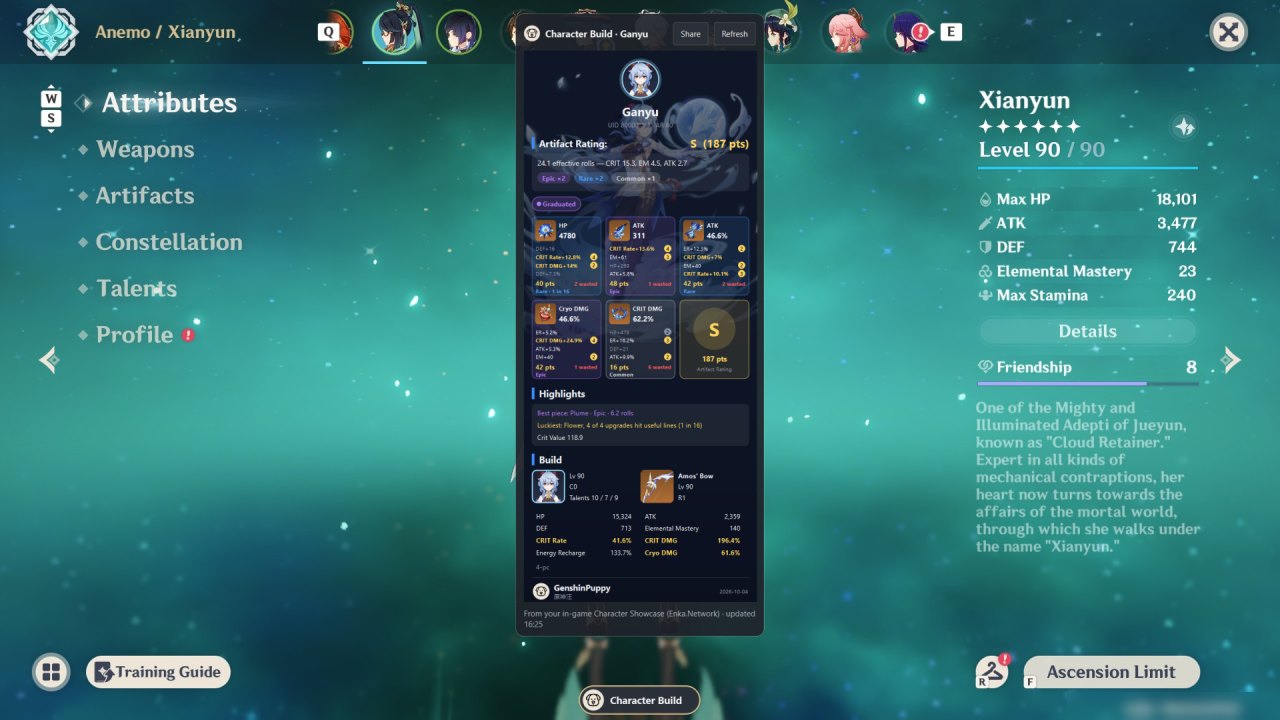
- Put the character in your Character Showcase (Profile → Character Showcase) and turn on Show Character Details.
- Open the character screen and press the Oufle button. Oufle reads your UID from the bottom-right corner and fetches your showcase from Enka.Network.
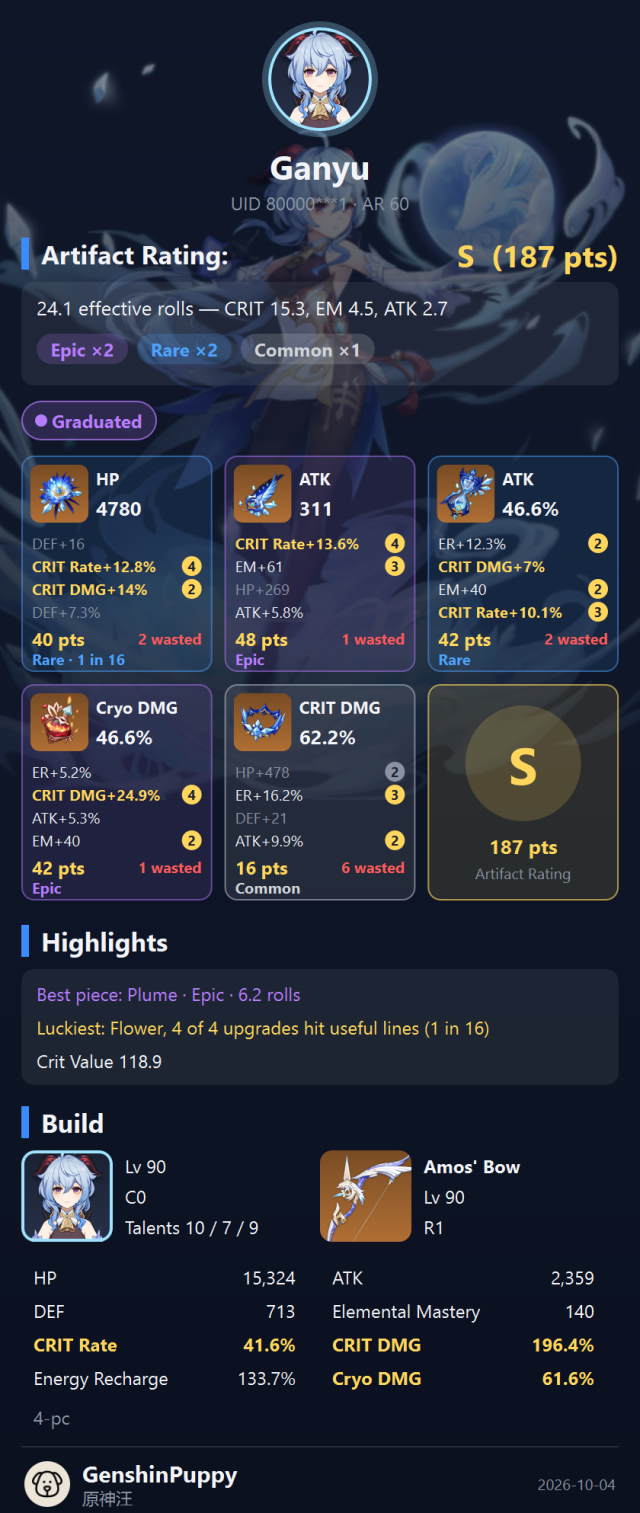
The panel shows each artifact with its score, effective rolls and rarity colour, the character's total stats, talents, weapon and a build grade. When a build improves, the card remembers the previous grade and shows the before and after.
The showcase updates a few minutes after you change it in the game; Refresh fetches it again when it's due.
❀Artifact rating
A score card next to the artifact you're looking at.
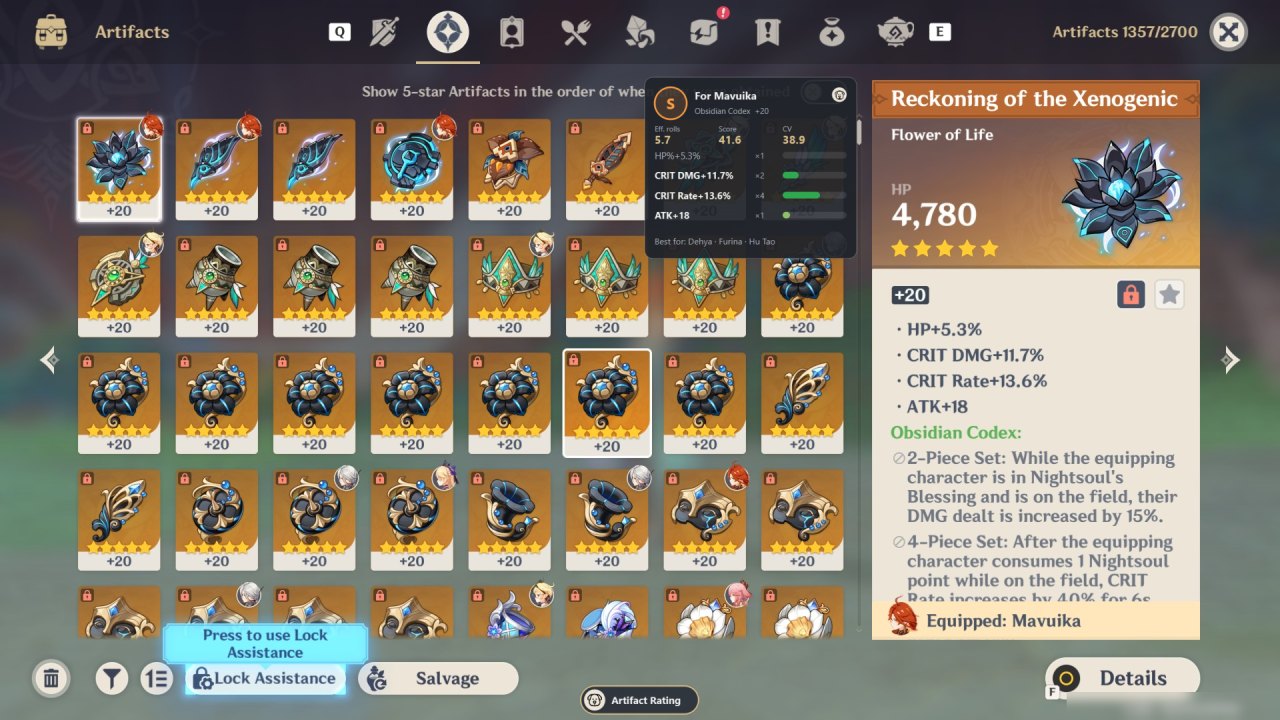
The card rates the artifact for the character wearing it (or the one you're viewing), with its score, rolls, crit value and rarity, and lists the characters it suits best. Sign in to Oufle to enable it automatically. The in-game Artifact Rating Oufle button can pause and resume the card.
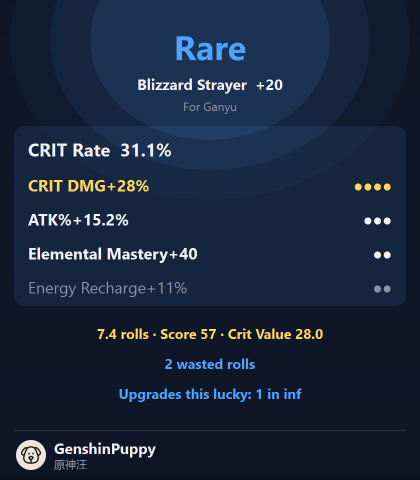
Find a Legendary or Mythic piece and Oufle offers to share it as a loot drop:
⌖Map resources
Pins for the resources you pick, on the map and minimap.
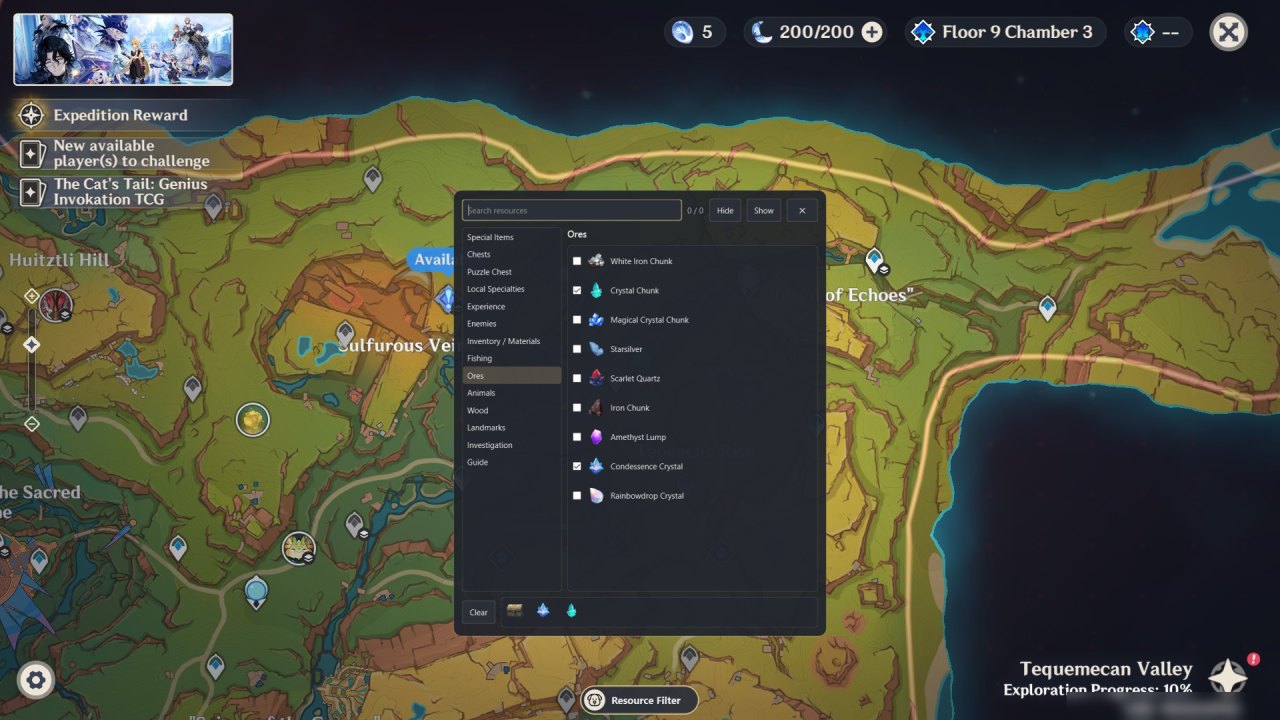
- Pick categories on the left and resources on the right; search works in English and Chinese.
- Hide hides all pins for a moment; your picks stay.
- Routes can be drawn too, under the routes category.
- After Oufle sign-in, Mini-map tracking starts automatically. Pins follow the minimap while you walk around; trail recording also requires sign-in.
My Routes remembers where you have been, separately for each account (the UID on screen):
- The first line says whether your path is being recorded. It is read from the minimap, so it pauses in quest areas, interiors and menus, and in places it cannot recognise (some towns).
- Show my footprints draws the last 3 days of your path on the map and minimap.
- Dim pins I have passed greys out resources you walked by: they are probably collected. They light up again when they respawn: local specialties after 2 days; crystal and amethyst ores and fishing spots after 3; white iron, starsilver and electro crystals after 2; iron and cooking ingredients at the next server midnight; animals after 12 hours. Chests and oculi stay grey.
- Save this trip as a route keeps the path since the last save. Tick a saved route to draw it again; its tooltip says how many of its resources have respawned. Right-click a saved route to delete it.
Map resources start automatically. Use the in-game resource filter to choose which pins to show.
✉Sharing & toasts
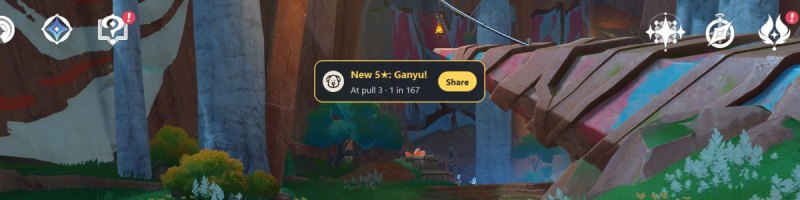
Oufle notifies you for a new 5★ (with its real odds), a newly earned achievement, an improved build or a Legendary artifact. Click the toast to share, or ignore it: it fades by itself.
Every share is saved as a sharp picture in Pictures\Oufle and copied to the clipboard, so you can paste it straight into a chat. Cards hide most of your UID.
◆Artifact rarity
Loot colours, like an action RPG. They count wasted rolls: rolls that went into a stat the character barely uses.
| Tier | Rule |
|---|---|
| Mythic | Every roll useful, fully levelled, and 7 or more effective rolls. |
| Legendary | Every roll useful. |
| Epic | 1 wasted roll. |
| Rare | 2 wasted rolls. |
| Magic | 3–4 wasted rolls. |
| Common | 5 or more wasted rolls. |
"1 in N" on a card is how unlikely it was for this many upgrades to land on useful lines, since each upgrade picks one of the four lines at random.
▲Build grades
The sum of the five artifact scores, weighted for the character.
| Grade | SSS | SS | S+ | S | A+ | A | B | C |
|---|---|---|---|---|---|---|---|---|
| Score from | 260 | 235 | 210 | 185 | 145 | 120 | 95 | 0 |
♚Achievements
Titles you earn from your wishes and builds. Bad luck earns titles too: misery loves company.
From wishes
| Title | How |
|---|---|
| Chosen One | A 5★ within 10 pulls (Mythic within 3). |
| Early Gold | A 5★ within 30 pulls. |
| Hard Pity Club | A 5★ only at pull 85+ (weapons 75+). |
| Coin-Flip King | 3 or more 50/50s won in a row. |
| Professional Loser | 3 or more 50/50s lost in a row. |
| Certified Lucky / Unlucky | Luckier (or unluckier) than 95% of players on the character banner. |
| 5★ Collector | 10 or more 5★ in a year. |
| Big Spender | 500 or more wishes in a year. |
From builds
| Title | How |
|---|---|
| Mythic Find / Flawless | A Mythic or a Legendary artifact. |
| Matching Set | All five artifacts Epic or better. |
| Crit Master | One artifact with crit value 45 or more. |
| Golden Ratio | 70% crit rate and 140% crit damage. |
| Upgrade Luck | Upgrades that lucky happen 1 time in 32 or rarer. |
| Graduated / Endgame Build | Grade S or better / SS or better. |
✓Privacy & safety
- Oufle only looks at the game window, like a screenshot. It doesn't read or change the game's memory or files and doesn't press keys for you.
- Your wish-history link stays on your PC, in memory, and is only sent to HoYoverse's own server to read your history.
- Your UID is only sent to Enka.Network, for character builds.
- Your wish history, achievements and build history are saved on your PC, in %APPDATA%\gamehelper. Wish history uses the standard UIGF format, so other tools can read it.
?FAQ
Does it work in full screen?
Yes. Oufle buttons, panels, map pins and share toasts all work in full screen, and clicking them doesn't take you out of the game. The one exception is typing in the Resource Filter's search box: in full screen the game minimises itself when another window takes the keyboard, so the box won't accept typing and says Search works in Windowed mode. Pick resources by clicking the categories instead, or switch to windowed mode (Alt+Enter, or Settings → Graphics → Display Mode) to search.
I don't see any Oufle buttons.
Buttons only appear on screens where a feature helps (wish, character, artifacts, map) and only while the game is in front. Check that the home window's light is green.
Sync says it can't find my wish history.
Open Wish → History in the game once, then sync again. The game's link expires after a day.
Character build says my showcase is empty or private.
Add the character to your Character Showcase and turn on Show Character Details, then wait a few minutes for it to update.
The panel covers something I need.
Click its Oufle button again to close it. Panels stay above the game's bottom buttons so Wish ×10 and Salvage remain clickable.
Resources I haven't collected are grey on the map.
Dim pins I have passed counts walking close by as collecting, because Oufle can see where you go but not what you pick up. Grey pins light up again when they respawn (see Map resources); turn the option off in My Routes if you'd rather see every pin.
My path isn't recorded in some places.
Your position is read from the minimap, so recording pauses in quest areas, interiors and menus, and in a few busy towns the minimap can't be recognised. The first line of My Routes says why.
How do I change the language?
Click the 文A button at the top of the home window and pick System, English or 中文. System uses Chinese on a Chinese Windows and English otherwise. Panels in the game switch too.